Key Takeaways
- To extract audio from a video (MP4, MKV, MOV…), you usually don’t need to convert anything: the file already contains a finished audio track. Extracting it without re-encoding is lossless and nearly instant.
- Converting to a different format (for example MP3) means re-encoding, which is a fresh lossy encode of the audio.
- VidFabs’ Audio extractor (Toolbox → Edit) handles a whole batch: pick Auto for a bit-perfect copy, or MP3 / M4A / OGG / FLAC.
- Videos with no audio track are marked “skipped” instead of stopping the batch.
- Everything runs on your own machine. Nothing is uploaded.
Extract vs. convert: the one distinction that matters
A video file is a container holding separate streams: usually one video stream and one or more audio streams. When people search for “video to MP3”, they are really asking for two different operations, and they have very different costs.
Extracting (stream copy). If the video’s audio is already AAC, as it is in most MP4 files, the tool lifts those exact bytes out and puts them in a standalone audio file. No decoding, no encoding, so the sound is identical to the original, and a long recording finishes in seconds because the work is just copying data.
Converting (transcoding). If you ask for MP3, the audio has to be decoded and encoded again in a different codec. That is a second lossy generation: usually fine for casual listening, but it can’t improve on the source and it takes longer than a copy.
The practical rule: if you only need the audio out of the video, and your player or editor accepts the original codec, copy it. Convert only when you need a specific format, such as MP3 for a device or service that insists on it. If you are curious how AAC encoding works in FFmpeg, the FFmpeg AAC encoding guide is a good reference.
Step by step in VidFabs
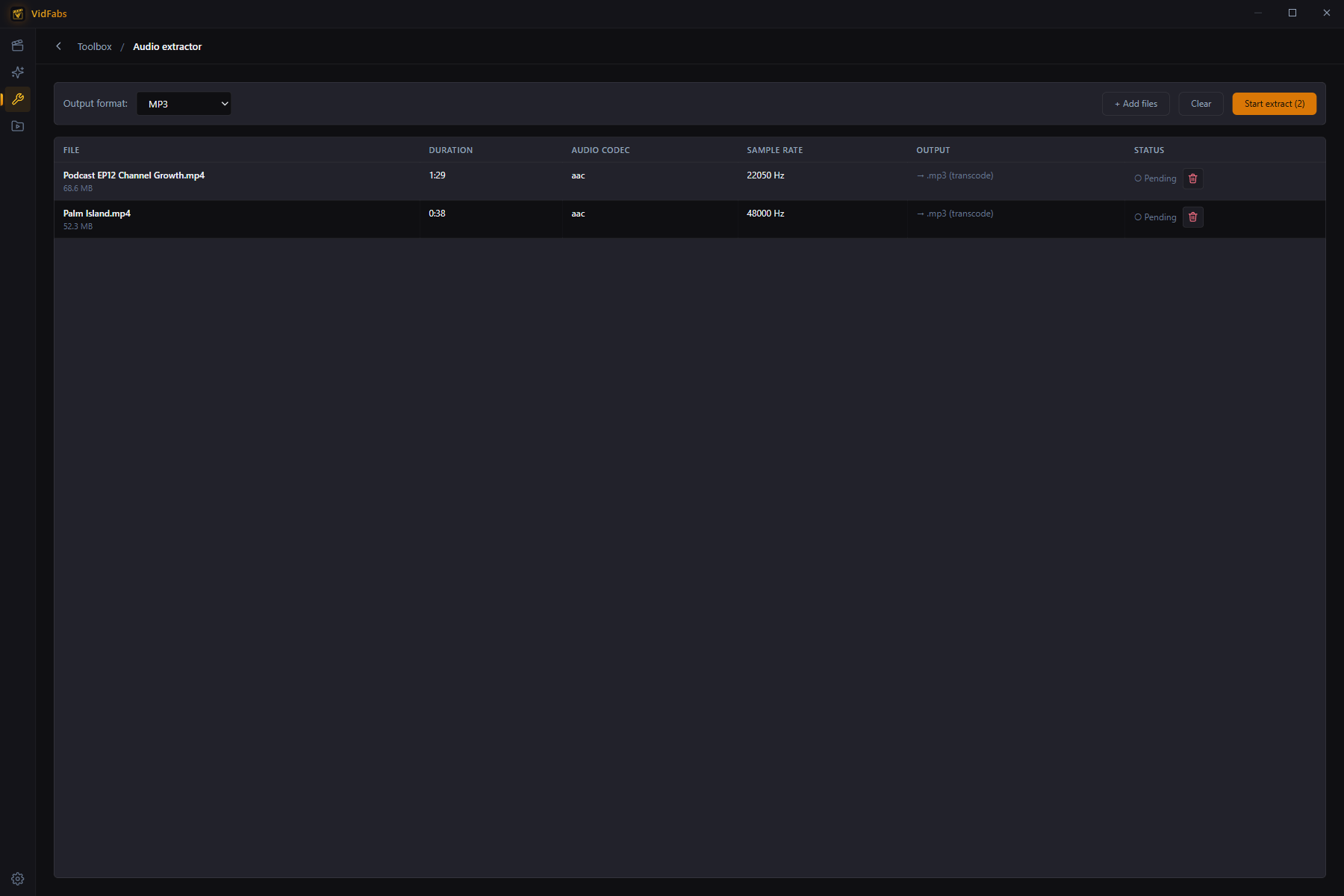
- Open Toolbox → Edit → Audio extractor.
- Drag in your videos. Each row shows the file’s audio codec and sample rate, so you can see what you are starting from.
- Choose the output format:
- Auto: copies the original audio stream losslessly into the right container. Fastest, bit-perfect.
- MP3 / M4A / OGG / FLAC: converts to that format.
- Click Start extract. You get live progress with an ETA for the whole batch.
- Any video without an audio track is marked skipped. The rest of the batch carries on.
Because each file is handled on its own row, you can drop in a mixed folder (different codecs, different sample rates) and run it in one pass.
Which output format should you pick?
- Auto when you want the audio exactly as recorded and don’t care about the file extension. This is the right default for archiving, for dropping the track into an editor, or for transcription.
- MP3 when a player, platform or device specifically asks for it. It is the most widely accepted format.
- M4A for AAC-style audio in a modern, well-supported container.
- OGG for open-format workflows.
- FLAC when you want a lossless file you can keep editing without piling on more lossy generations. Note that FLAC can’t restore detail that was already lost in a lossy source, so it won’t make a compressed track sound better. It just stops further loss.
Good uses for batch extraction
- Podcasts from recordings. Record a video call or studio session, then pull the audio out for publishing.
- Voice tracks for transcription. Many transcription tools want audio only, and an extracted track is a much smaller upload than the video.
- Music from your own footage. Concert or event recordings you shot yourself, or audio you have the rights to reuse in an edit.
A note on rights: extracting audio is a technical operation, and it doesn’t change who owns the content. Only extract audio from videos you made or have permission to use.
Tips
- If you plan to cut the audio later, extract with Auto first and trim afterward. You avoid a re-encode now and another one later.
- Need a different container or codec for the video itself? That’s a separate job, covered in Batch Convert Videos to MP4, MKV, WEBM or MOV.
Need to join several clips into one file first? See How to Merge Videos into One on Windows. The full tool reference is in the Trim, Merge & Audio Extract guide.
Get VidFabs
VidFabs is free on Windows 10 / 11 (64-bit), and the Audio extractor is one of the Toolbox tools included at no cost.
Download VidFabs for Windows. The macOS build is coming soon.