Frame-by-frame video editor
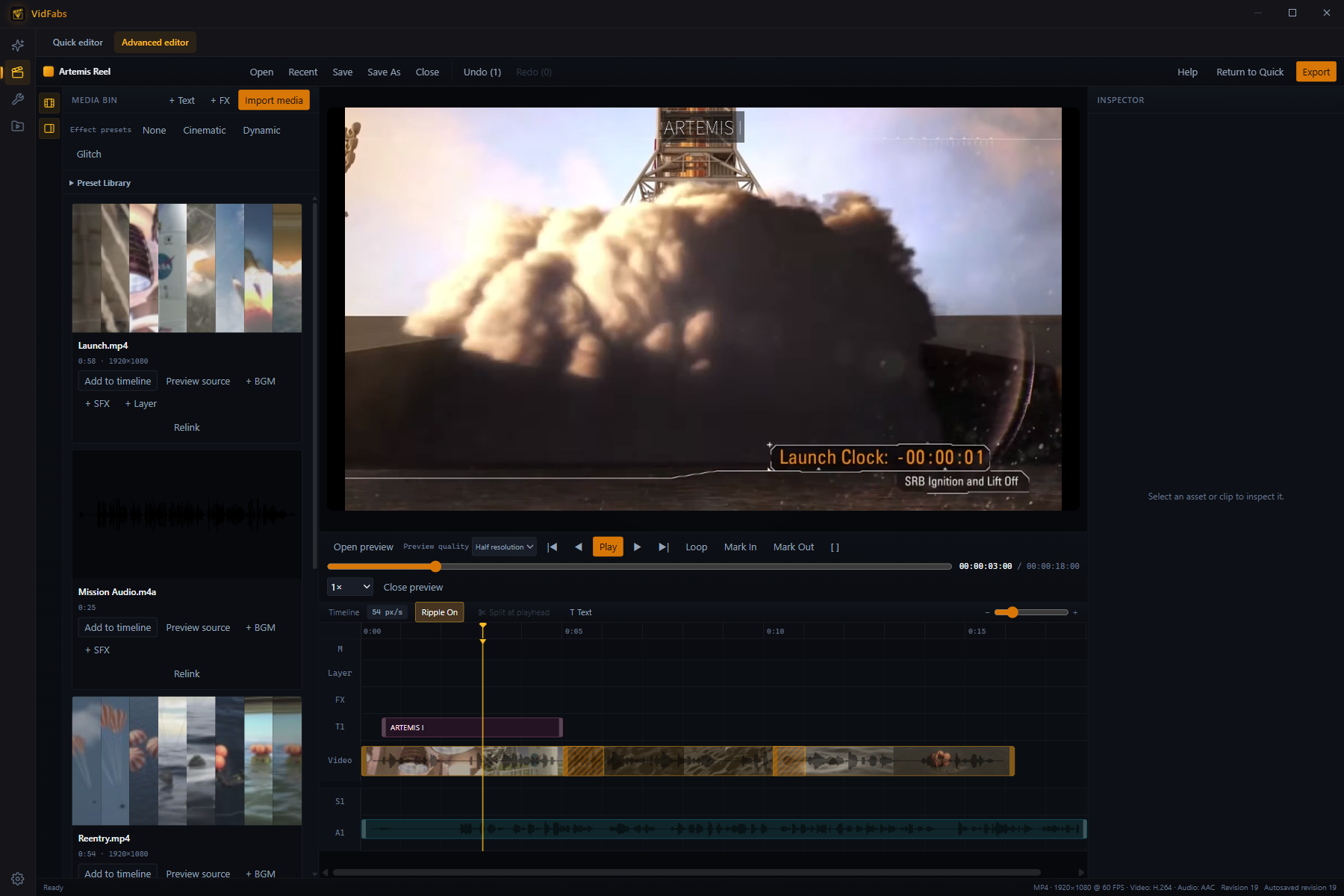
VidFabs' Advanced editor is a project timeline built for precise cuts. Step through your footage one frame at a time, mark In and Out, split exactly where you want, then add transitions, text, music and layers — all rendered on your own PC.
How to edit a video frame by frame
-
Import and lay out clips
Import your files into the Media Bin and drag them onto the timeline. Clips snap to each other and to the playhead.
-
Find the exact frame
Press , and . (or ← and →) to move one frame at a time. The timecode shows frames, so you always know where you are.
-
Mark and split
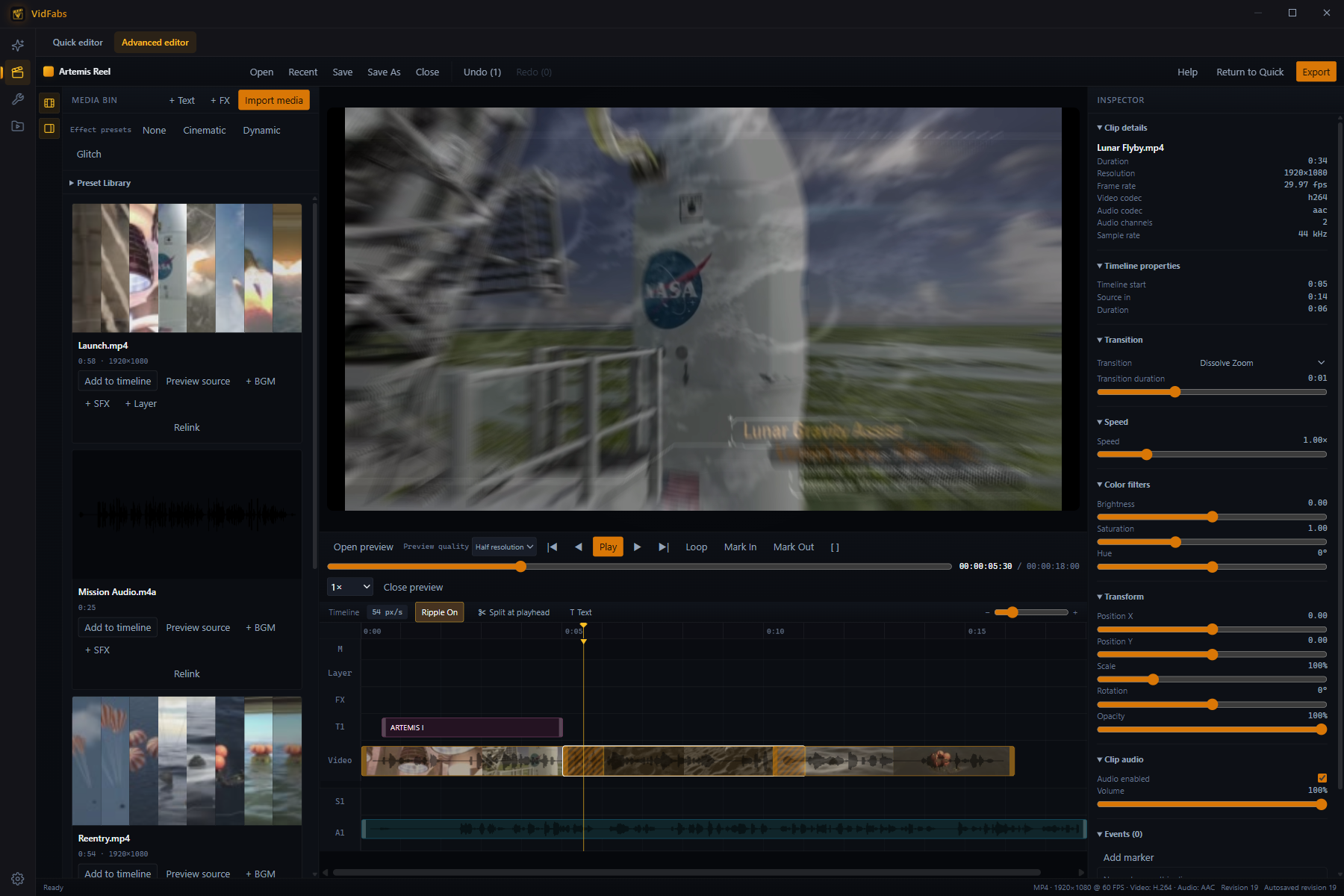
Set In and Out with I and O, or split the clip at the playhead. Loop the range with Shift+L to check the cut.
-
Ripple-trim and export
With Ripple on, trimming or deleting closes the gap automatically. When it looks right, export locally.
Keyboard shortcuts for frame-accurate editing
| Key | Action |
|---|---|
| SpaceK | Play / pause |
| ,← | Previous frame |
| .→ | Next frame |
| HomeEnd | Jump to start / end |
| I | Mark In |
| O | Mark Out |
| Shift+L | Loop |
| Ctrl+ZCtrl+Shift+Z | Undo / redo |
| M | Add marker |
After the cut
The same timeline handles the rest of the edit.
-
12 transitions
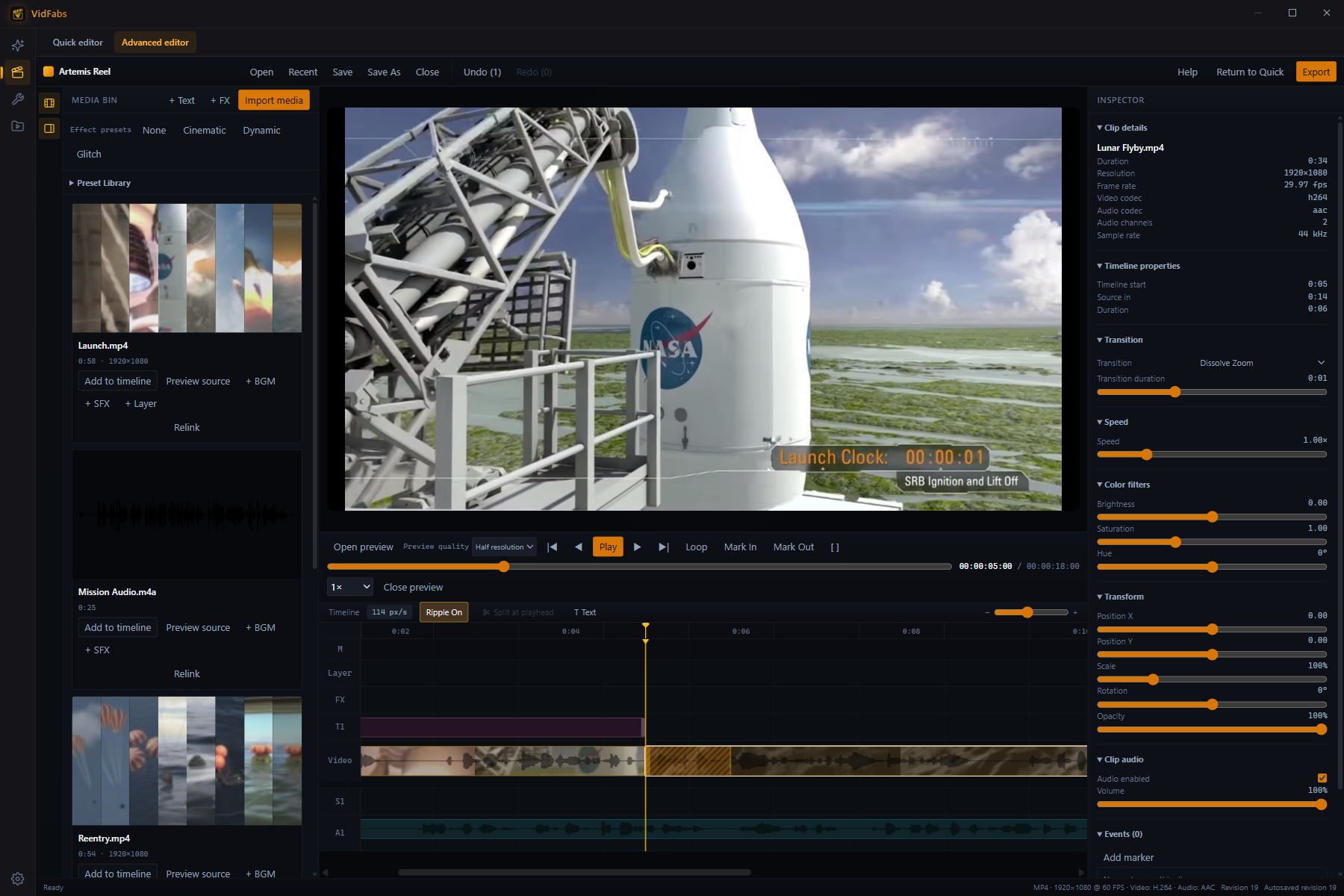
Fade, dissolve zoom, wipes, circle reveal, glitch, pixelate, blur and more — with adjustable duration.
-
Speed 0.25–4×
Slow a clip right down or speed it up, clip by clip.
-
Transform & color
Position, scale, rotation and opacity, plus brightness, saturation and hue.
-
Text, music & sound effects
Dedicated lanes for titles, background music and SFX — each block with its own volume and fade.
-
Picture-in-picture layers
Picture in picture, split screen or overlay, with four blend modes.
-
Effects & Preset Library
Nine project-wide effects, plus gaming-clip presets such as Instant Replay, Slow-Mo and Freeze Kill.
Export on your own hardware
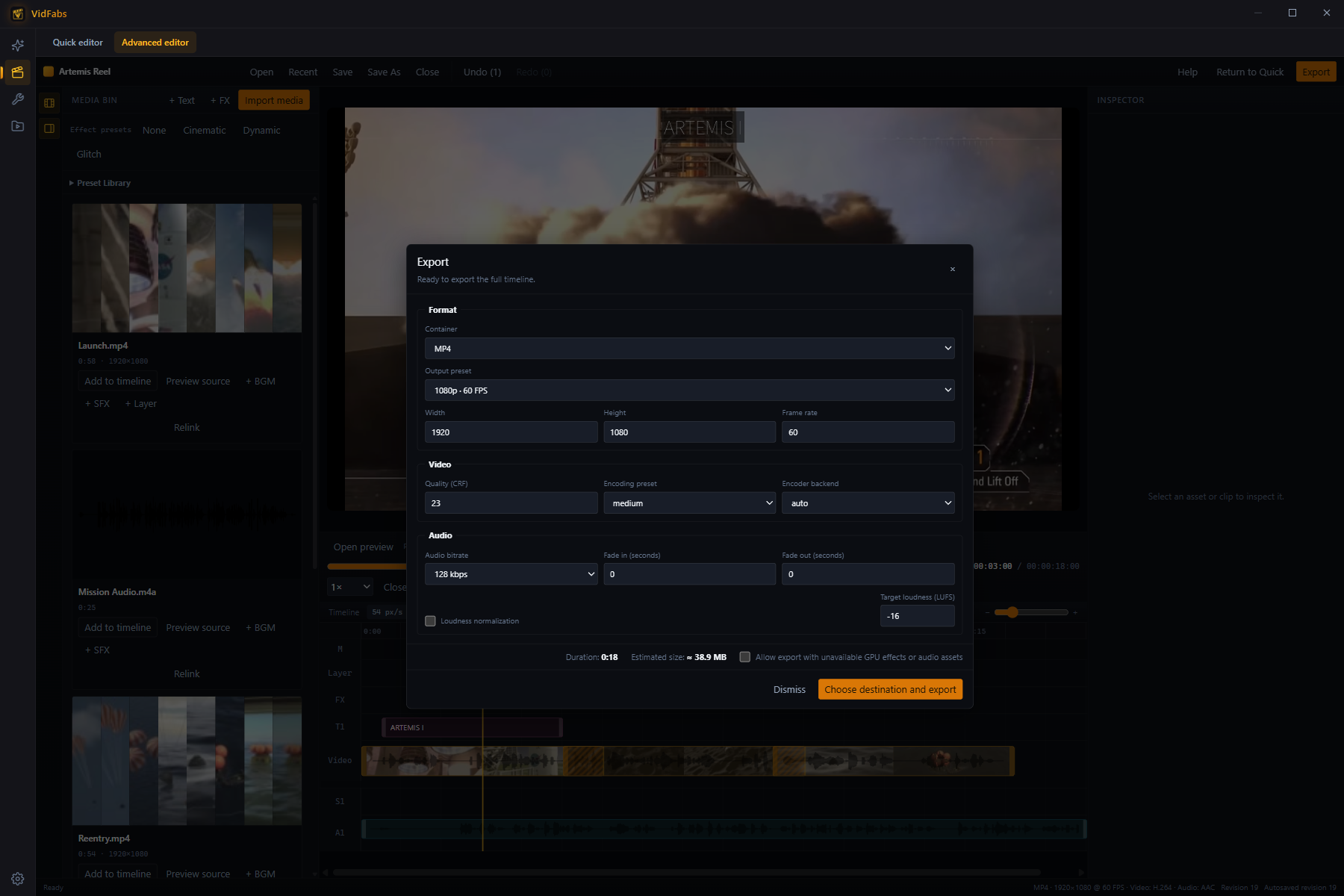
Export MP4, MOV or MKV (H.264 video, AAC audio) up to 4K at 60 fps: use the 1080p 30/60 or 720p30 presets, or set a custom size and frame rate. Pick CRF quality and an encoder: Auto (hardware when available, otherwise CPU), CPU only, or NVIDIA NVENC, AMD AMF, Intel QSV or Windows Media Foundation. If the chosen hardware encoder isn't available, the export falls back to the CPU and tells you when it finishes. You can also normalize loudness, and the dialog estimates file size before you start.
Quick editor or Advanced editor?
| Quick editor | Advanced editor | |
|---|---|---|
| Plan | Free | Pro |
| Platform | Windows (macOS coming soon) | Windows 10/11 (64-bit) |
| Editing | One video, up to seven stacked effects | Project timeline, frame stepping, split, ripple trim, undo |
| Layers & audio | Subtitles and text or logo watermarks | Text, music, sound effects, picture-in-picture layers, transitions |
| Export | MP4 / MKV / MOV (H.264) or WEBM (VP9) · 1080p free · 4K and H.265 with Pro | MP4 / MOV / MKV · H.264 · up to 4K 60 fps (1080p 30/60, 720p30 or custom) · hardware encoding |
System requirements
- Windows 10 or 11, 64-bit
- No dedicated GPU required; if GPU effects are unavailable you can still export with them degraded
- A Pro plan (monthly, yearly or lifetime)
Frequently asked questions
Can I edit frame by frame for free?
Does the Advanced editor work on Mac?
Is my footage uploaded?
What can the Advanced editor export?
Try it on your next edit
Download VidFabs free, then upgrade to Pro to unlock the Advanced editor.
Read the full Advanced editor guide →