Key Takeaways
- MKV and MP4 are containers — boxes that hold video, audio and subtitle streams. The quality lives in the streams, not the box.
- If the streams already fit MP4 (H.264 or HEVC video, AAC audio), the file can be remuxed: copied into a new box with zero quality loss, in seconds.
- Only when a stream cannot go into MP4 does a converter have to re-encode, and that is the only step where quality can change.
- VidFabs’ Format converter shows which of the two it will do, per file, before you click start — so you never re-compress a file that only needed a new wrapper.
MKV vs MP4: what actually differs
Both formats are wrappers. Matroska (the MKV container) was designed to hold almost anything: any video codec, any number of audio tracks, text subtitles in SRT or ASS, chapters, attachments. MP4 is stricter about what it accepts, which is exactly why it plays everywhere — phones, TVs, browsers, editing apps — while MKV support is patchier outside desktop players.
The pixels themselves are produced by a codec: H.264, HEVC (H.265), VP9, AV1. An MKV file holding H.264 video and an MKV file holding VP9 video are both “MKV”, but they will behave very differently when you ask for an MP4.
So the question “does MKV to MP4 lose quality?” has no single answer. It depends entirely on which streams are inside and whether the converter copies them or rebuilds them.
Remux: the lossless path
A remux (short for re-multiplex) takes the existing compressed streams out of one container and writes them into another without decoding anything. In FFmpeg terms this is stream copy: the encoder is never invoked, so the output video and audio are byte-for-byte identical to the input.
Two consequences follow:
- Zero quality loss. There is nothing to lose — no decode, no re-compression.
- It is fast. The work is just rewriting container headers and interleaving packets. A 10 GB file typically finishes in a few seconds, limited by disk speed.
For the most common MKV in the wild — H.264 video with AAC audio, the output of most cameras, screen recorders and encoders — a remux to MP4 is all you ever need.
Re-encode: when the box won’t take the stream
Sometimes a stream genuinely cannot be carried into the target container as-is. Then the converter has to decode it and encode it again with a codec the container does support. That second encode is a lossy compression step, like saving a JPEG twice: at a sensible quality setting the difference is usually invisible, but it is not lossless, and it takes real CPU time.
In VidFabs’ converter the rule is simple: if the codecs already fit the target, the row is marked Will repackage (fast); if they don’t — for example a VP9 stream headed for MP4 — the row is marked Will re-encode and the file is transcoded to H.264/AAC (or VP9/Opus when the target is WEBM). You see the decision before anything runs, and you can cancel a batch at any time.
A few other things worth knowing before you convert:
- Subtitle tracks. MKV frequently carries SRT or ASS text subtitles. MP4 does not store those formats the same way, so don’t expect a soft subtitle track to survive the trip unchanged. If the captions matter, add them to the MP4 afterwards with the subtitle burn or embed tools.
- Multiple audio tracks. A film MKV with several language tracks is a normal Matroska use case; MP4 players are far less consistent about offering a track switch.
- Playback problems after a remux almost always mean the player lacks the codec (HEVC on an older device, for instance), not that the conversion failed. In that case a re-encode to H.264 is the fix.
How to convert MKV to MP4 in VidFabs
The converter runs entirely on your PC, batches up to 20 files, and decides remux versus re-encode per file.
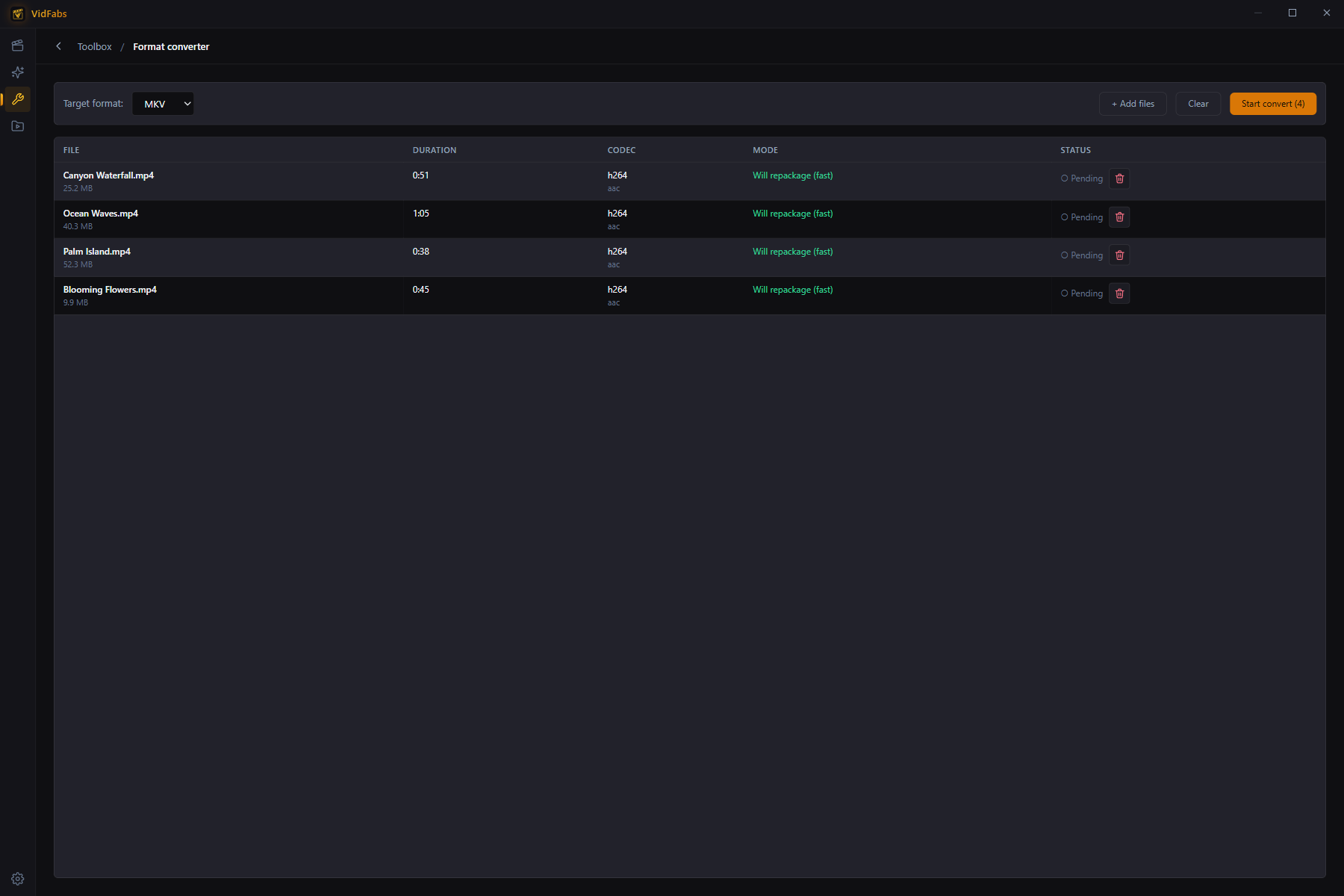
- Open Toolbox → Format converter.
- Drag in your MKV files — up to 20 at once — or click Add files.
- Set the Target format to MP4. Each row now shows the file’s duration, its codec, and the mode it will use: Will repackage (fast) or Will re-encode.
- Click Start convert. Rows report live progress and an ETA; a remux row will finish almost immediately.
- Click Open folder on a finished row, or find the results under My Files → Edited.
MP4 output is written with the faststart flag, so the files begin playing immediately
when streamed from a web server. Files the app cannot read are flagged individually
rather than failing the whole batch.
If you want the general tour of the converter — all four target formats and the typical use cases — read Batch Convert Videos to MP4, MKV, WEBM or MOV. This post is only about the MKV → MP4 question and the remux-or-re-encode decision behind it.
Quick decision guide
| Inside your MKV | What happens going to MP4 | Quality |
|---|---|---|
| H.264 or HEVC video + AAC audio | Remux (stream copy) | Identical |
| VP9 (or another codec MP4 won’t take) | Re-encode to H.264/AAC | Lossy, usually visually transparent |
| SRT / ASS subtitle tracks | Not carried as-is | Burn or embed afterwards |
| Several audio tracks | Depends on the player | Unchanged, but may not be switchable |
When in doubt, let the converter tell you: the mode on each row is the answer for that specific file.
The same stream-copy idea applies to audio: you can pull the AAC track out of a video without re-encoding it, as shown in How to Extract Audio from a Video in Batches.
Get VidFabs
The Format converter is one of twelve free Toolbox tools in VidFabs for Windows 10 / 11 (64-bit). No GPU required, nothing uploaded. The full reference is in the Format Converter guide.
Download VidFabs for Windows — the macOS build is coming soon.