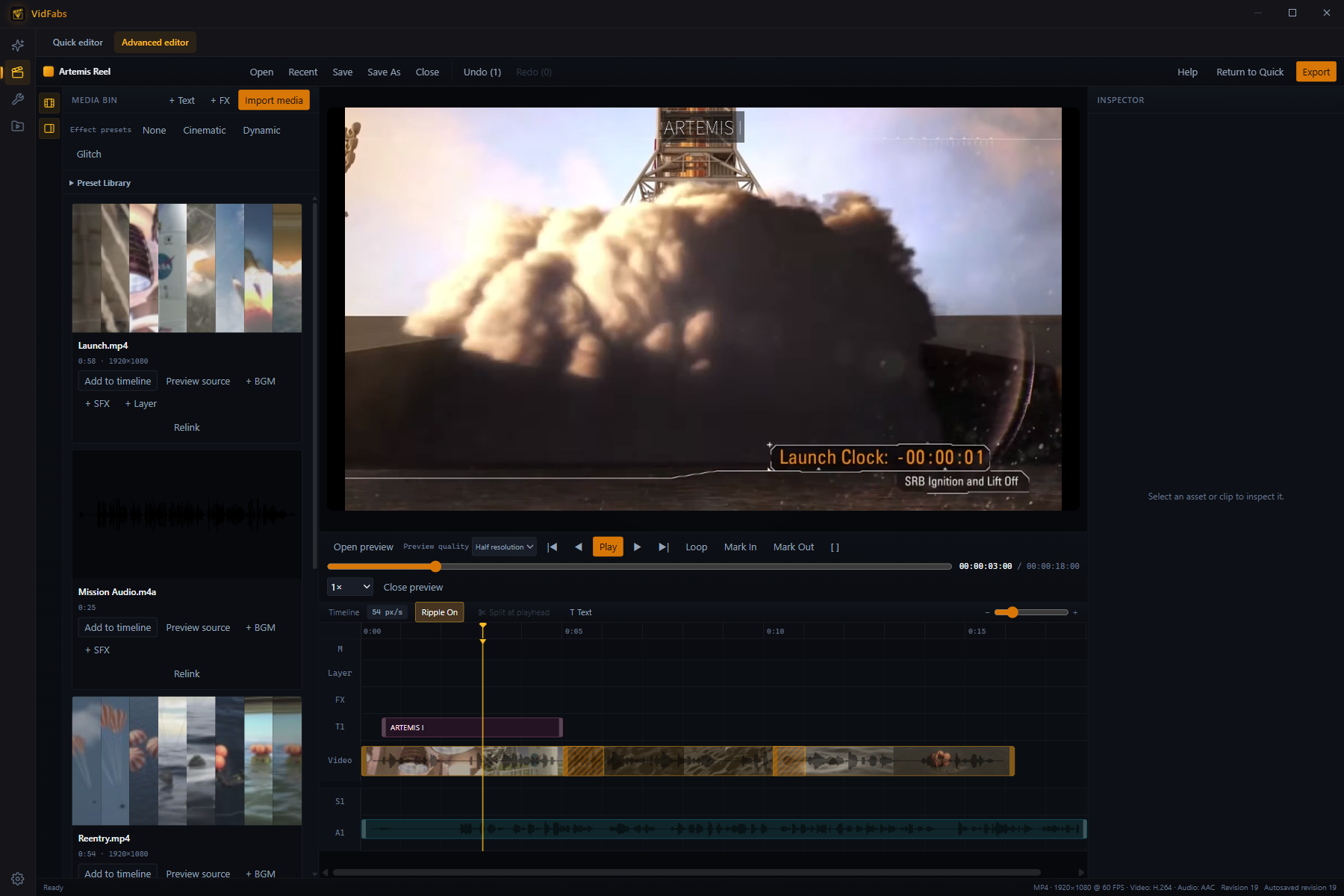
The Editor page has two modes. The Quick editor stacks effects on a single video and exports once. The Advanced editor is a project-based timeline for edits that need several clips, precise cut points, transitions and layered audio and graphics. Switch between them with the tabs at the top of the Editor page.
Projects
Work is saved as a .vfproj project: New, Open, Save, Save As, and
Recent (Ctrl+Shift+O). Changes autosave a few seconds after each edit, and if the
app closes unexpectedly you can Recover autosave the next time you open it. If a
source file has moved, Relink points the project at the new location and warns you
when the replacement file differs.
Workspace
Five panels, each resizable or collapsible:
- Media Bin — imported files with thumbnails, a filmstrip for video and a waveform for audio.
- Preview — plays the timeline at half or full resolution.
- Timeline — the main video track plus lanes for text, background music, sound effects, layers, project effects and markers.
- Inspector — properties of whatever is selected.
- Command bar — project, undo/redo and export.
Frame-accurate transport
- Previous frame / Next frame with
,and.(or ← / →). - Timecode shows hours, minutes, seconds and frames, based on the project’s output frame rate.
- Mark In / Mark Out with
I/O, Loop with Shift+L. - Playback rate 0.25×, 0.5×, 1× or 2× for checking fast action.
Editing the main track
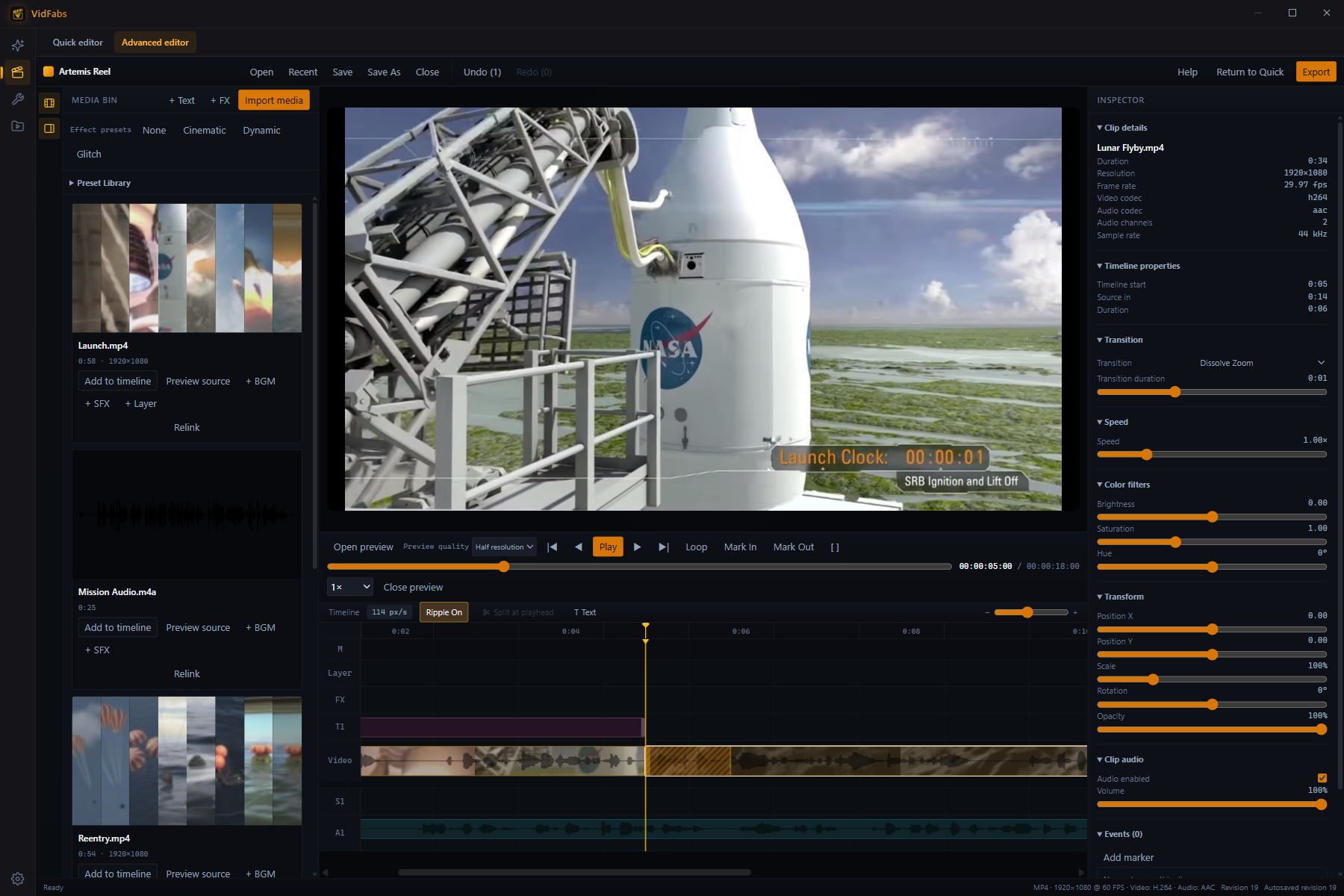
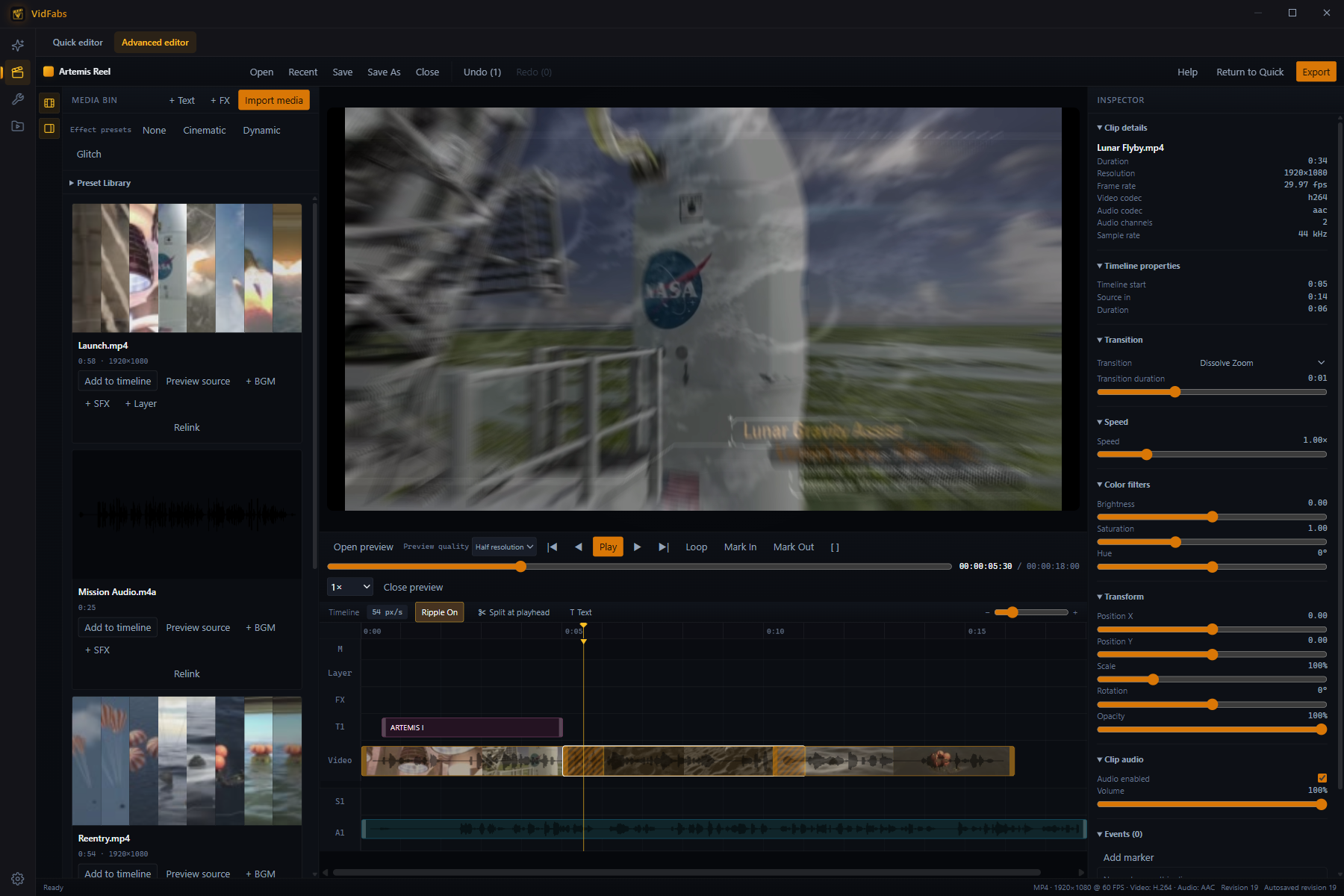
Drag clips from the Media Bin onto the timeline; they snap to neighbours and the playhead. Trim either edge, Split at playhead, Duplicate (Ctrl+D) or delete. With Ripple on, deleting or trimming closes the gap automatically. Every action can be undone.
Clip properties
Select a clip and use the Inspector:
| Section | What you control |
|---|---|
| Transition | 12 transitions into the clip — fade, dissolve zoom, radial and directional wipes, circle reveal, glitch, pixelate, blur, bounce zoom, luminance melt — with adjustable duration |
| Speed | 0.25×–4× |
| Transform | Position, scale, rotation, opacity |
| Color filters | Brightness, saturation, hue |
| Clip audio | On/off and volume |
Text, music, sound effects and layers
- + Text — titles and captions in 7 positions with size, font color, background box and fade. CJK text works out of the box.
- + BGM — background music that can loop, overlap and be split, each block with its own volume and fade.
- + SFX — sound effects placed anywhere on the timeline.
- + Layer — Picture in picture, Split screen or Overlay, with normal, screen, multiply and overlay blending.
- + FX — project-wide looks such as vignette, color grade, chromatic aberration, zoom blur, glitch or particles; quick presets Cinematic, Dynamic and Glitch.
The Preset Library bundles common gaming-clip moves — Instant Replay, Slow-Mo, Freeze Kill, Headshot Flash, Kill Count HUD and more — that you can drop in and adjust.
Export
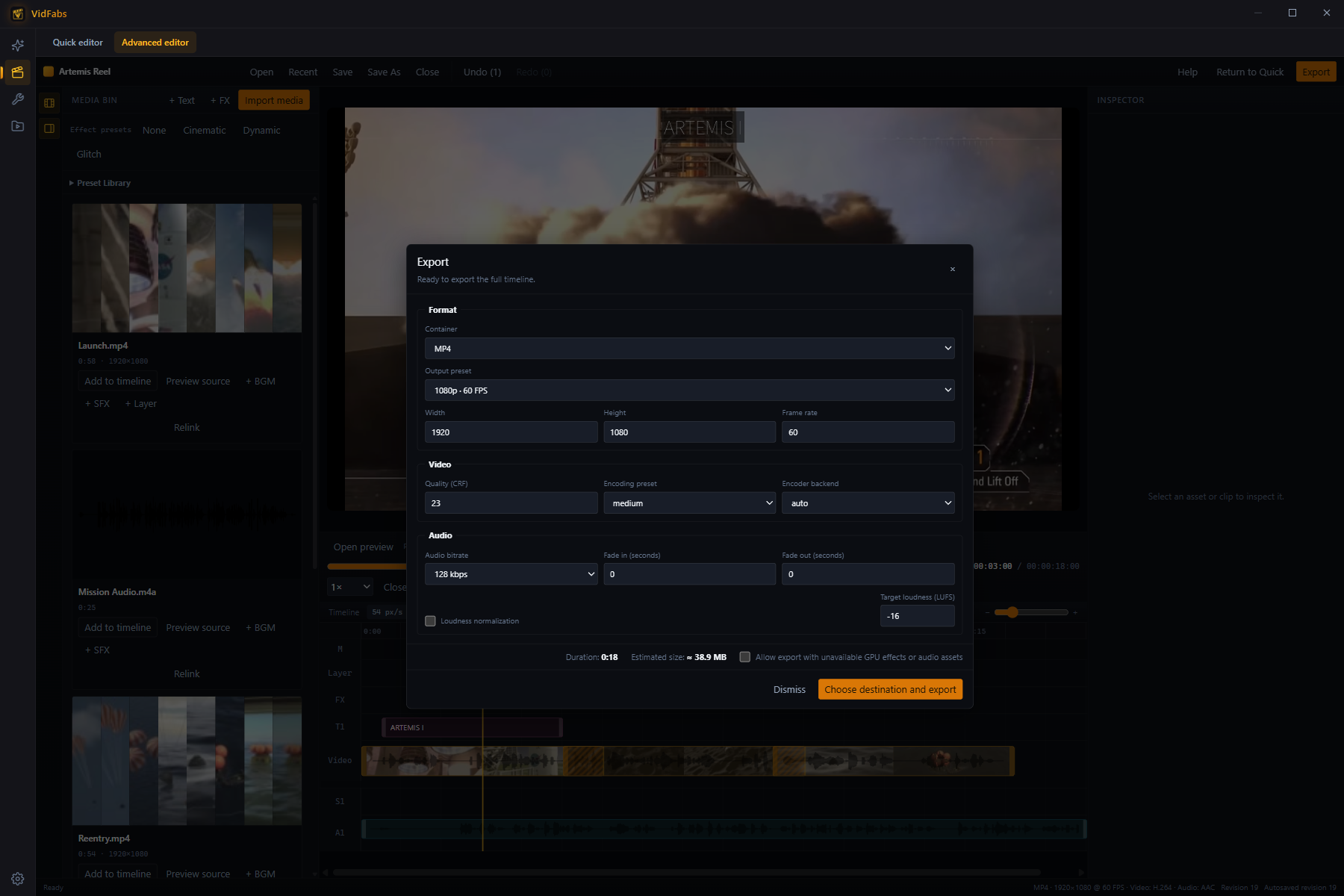
- Container: MP4, MOV or MKV (H.264 video, AAC audio).
- Output preset: 1080p 30/60 fps, 720p 30 fps, or a custom size (up to 4K, 3840×2160) and frame rate.
- Quality (CRF) and Encoding preset for size-versus-speed control.
- Encoder backend: Auto (hardware encoding when available, otherwise CPU), CPU only, or a specific backend: NVIDIA NVENC, AMD AMF, Intel QSV or Windows Media Foundation. If a chosen hardware encoder isn’t available on the computer, export uses the CPU and says so when it finishes.
- Audio fade in/out and Loudness normalization.
The dialog estimates duration and file size before you start. When the render finishes, open the file or its folder; the output also appears under My Files.
Keyboard shortcuts
| Key | Action |
|---|---|
| Space / K | Play / pause |
| , / ← and . / → | Previous / next frame |
| Home / End | Jump to start / end |
| I / O | Mark In / Mark Out |
| Shift+L | Loop |
| Ctrl+Z / Ctrl+Shift+Z | Undo / redo |
| Ctrl+S / Ctrl+Shift+S | Save / Save As |
| Ctrl+O / Ctrl+Shift+O | Open / recent projects |
| Ctrl+D | Duplicate clip |
| M | Add marker |
| Delete | Delete |
| F1 or ? | Show all shortcuts |
Availability
The Advanced editor requires Pro and runs on Windows 10/11 (64-bit). Free users see a lock on the Advanced tab and can keep using the Quick editor and every Toolbox tool. If a subscription lapses mid-project you can still save and close your work.
Tips
- Need one effect on one file? The Quick editor or a Toolbox tool is faster.
- Keep projects and source media on the same drive so Relink is rarely needed.